
Installation Guide
🍁 IPTV Canada Installation Guide
Easy IPTV setup guide for all devices.
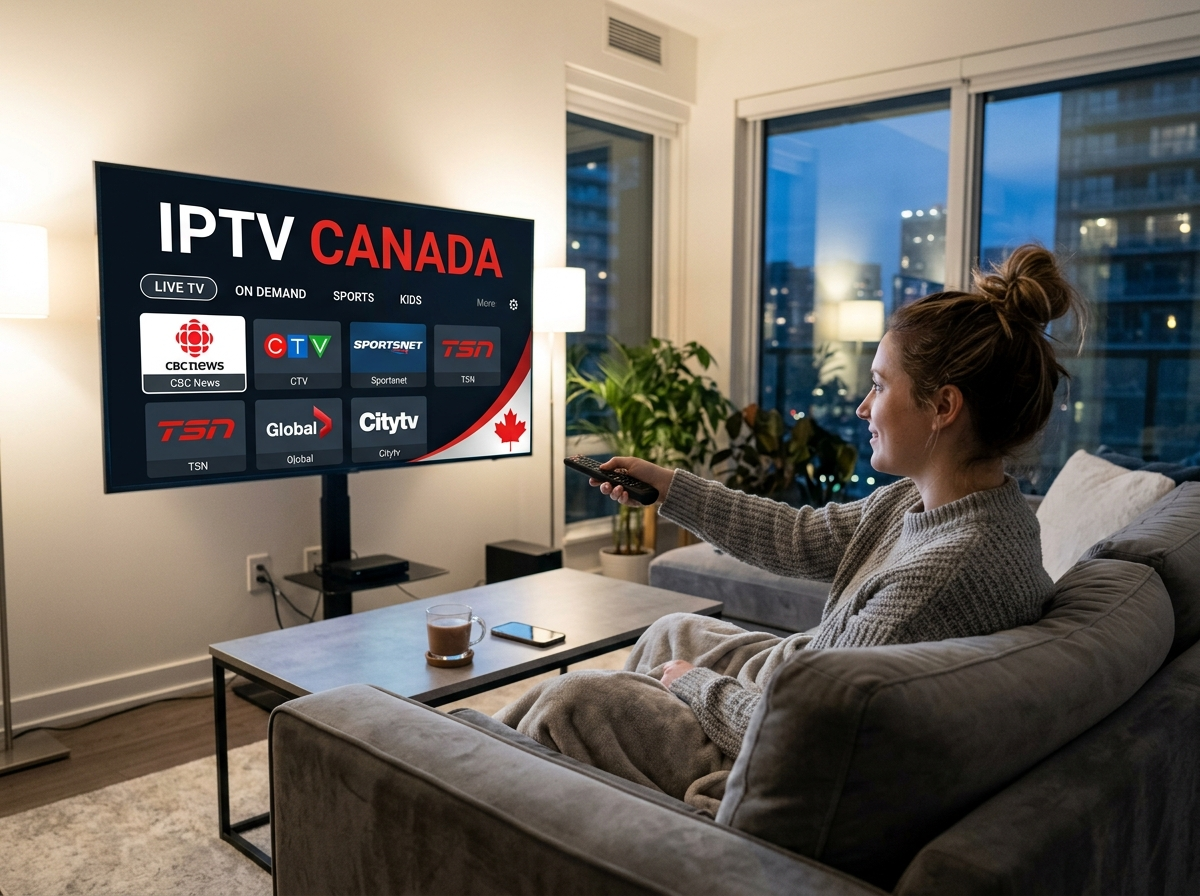
📺 Smart TV Installation
- Open your TV App Store.
- Download an IPTV app such as IPTV Smarters or Smart IPTV.
- Open the app after installation.
- Enter the IPTV login details or M3U URL provided after purchase.
- Save and start streaming.
🔥 Amazon Firestick Installation
- Go to Settings → My Fire TV → Developer Options.
- Enable Apps from Unknown Sources.
- Install the Downloader app from the Amazon Store.
- Use Downloader to install your preferred IPTV player.
- Enter your IPTV credentials and enjoy streaming.
Code Downloader : 1218195
📱 Android Phone & Tablet
- Open Google Play Store.
- Install IPTV Smarters or another IPTV player.
- Launch the app.
- Add your IPTV account using Xtream Codes or M3U link.
- Start watching live channels and VOD.
🍎 iPhone & iPad Installation
- Open the Apple App Store.
- Download an IPTV player application.
- Open the app and enter your IPTV subscription details.
- Save your account and enjoy streaming.
💻 Windows & Mac Setup
- Download a compatible IPTV player.
- Install and open the application.
- Enter your IPTV login credentials or M3U playlist.
- Load channels and begin streaming.
📦 MAG Device Setup
- Open Settings on your MAG device.
- Select System Settings → Servers → Portals.
- Enter the Portal URL provided after purchase.
- Save changes and restart the device.
⚡ Recommended Internet Speed
- ✔ HD Streaming: Minimum 15 Mbps
- ✔ 4K Streaming: Minimum 30 Mbps
- ✔ Wired Ethernet connection recommended for best stability
🛠 Troubleshooting Tips
- Restart your IPTV app or device.
- Check your internet connection.
- Clear app cache if needed.
- Verify your IPTV login details.
- Contact support if the issue continues.
💬 Need Help?
Our support team is available to help you with installation and setup anytime.
🌐 Website:
https://iptvcanada.youcan.store
💬 WhatsApp Support:
+212 665 678037
Need Installation Assistance?
Contact Support on WhatsApp